How the Export Component Works
The Export component writes data from a Grasshopper script to a file location that can be accessed and downloaded in Inform.
The file is created based on the user's script output (such as Excel, CSV, or other formats). As new results are generated during exploration, the file updates automatically with the latest data.
Step 1: Set Up the Component
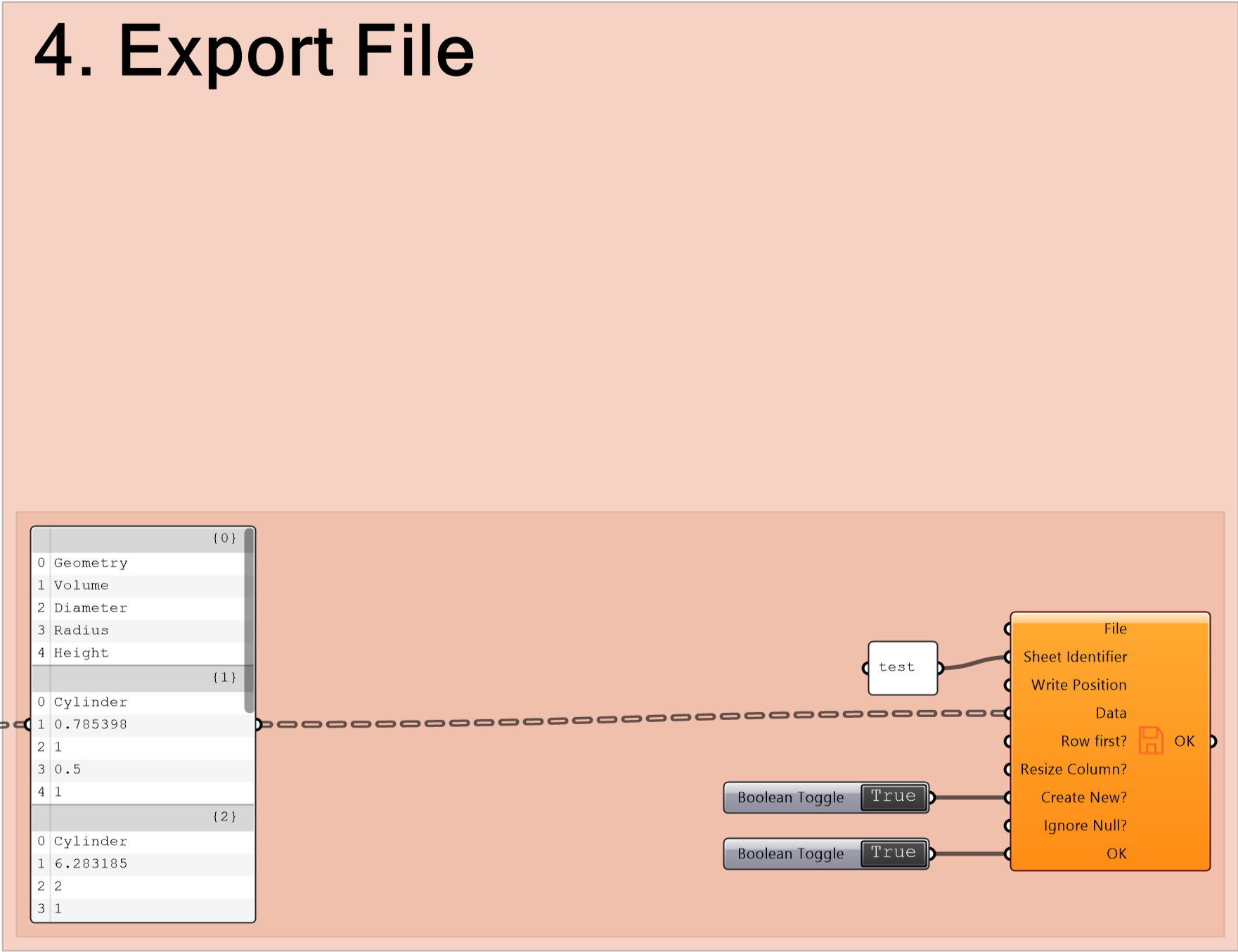
1. Ensure the script writes output to a file. (Any file format should work)
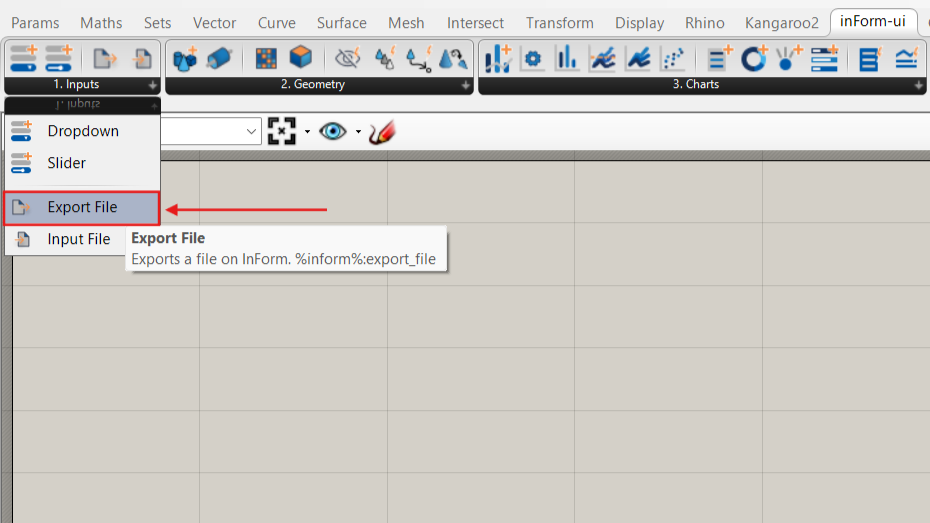
2. In inForm-ui, go to 1. Inputs and place the Export File component on the Grasshopper canvas.
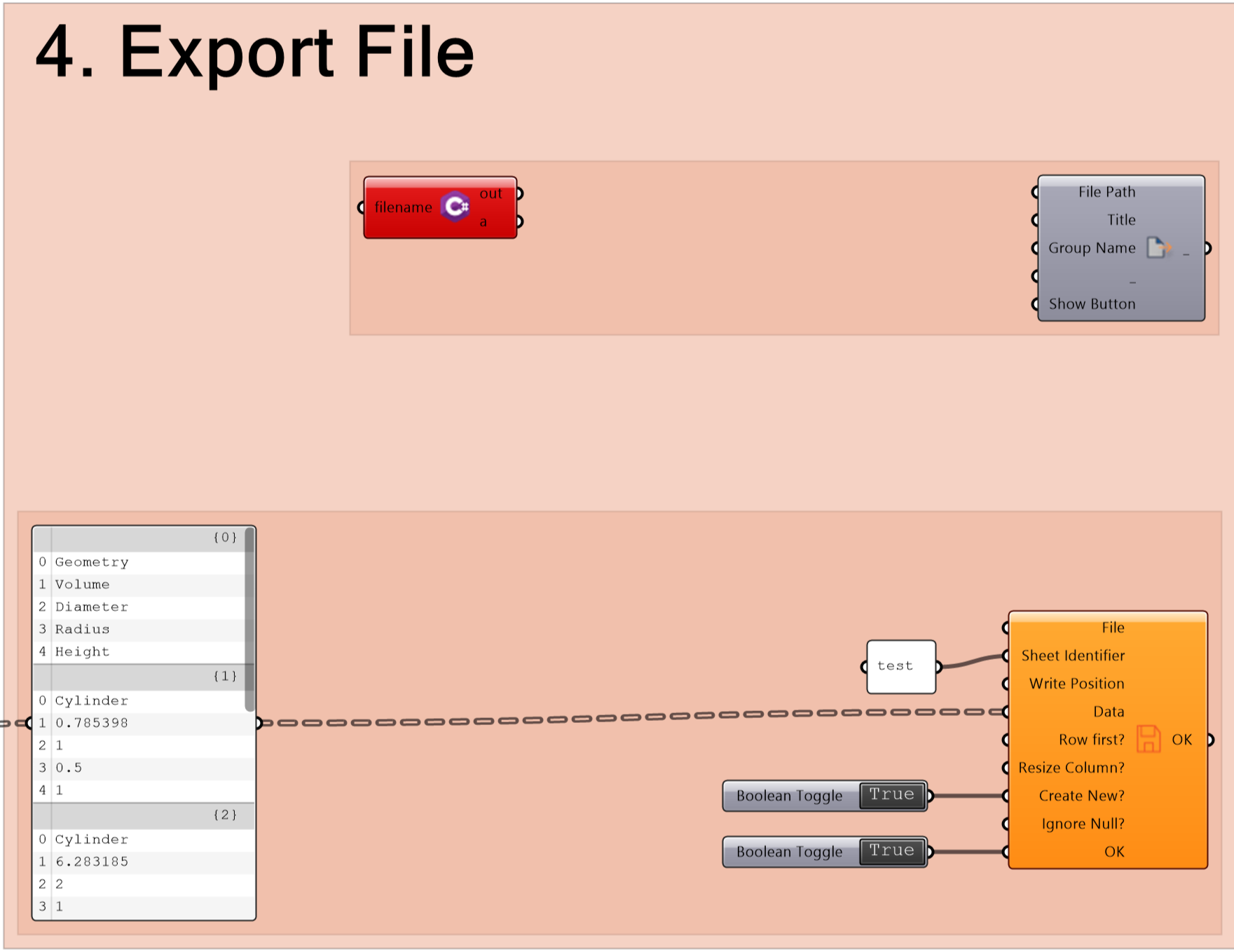
3. Add the C# component from the example file.
This component creates the file in a location accessible by InForm and updates it when new results are generated.
4. Connect a Panel containing the file name and extension (e.g. .csv, .xlsx) to the filename input of the C# component.
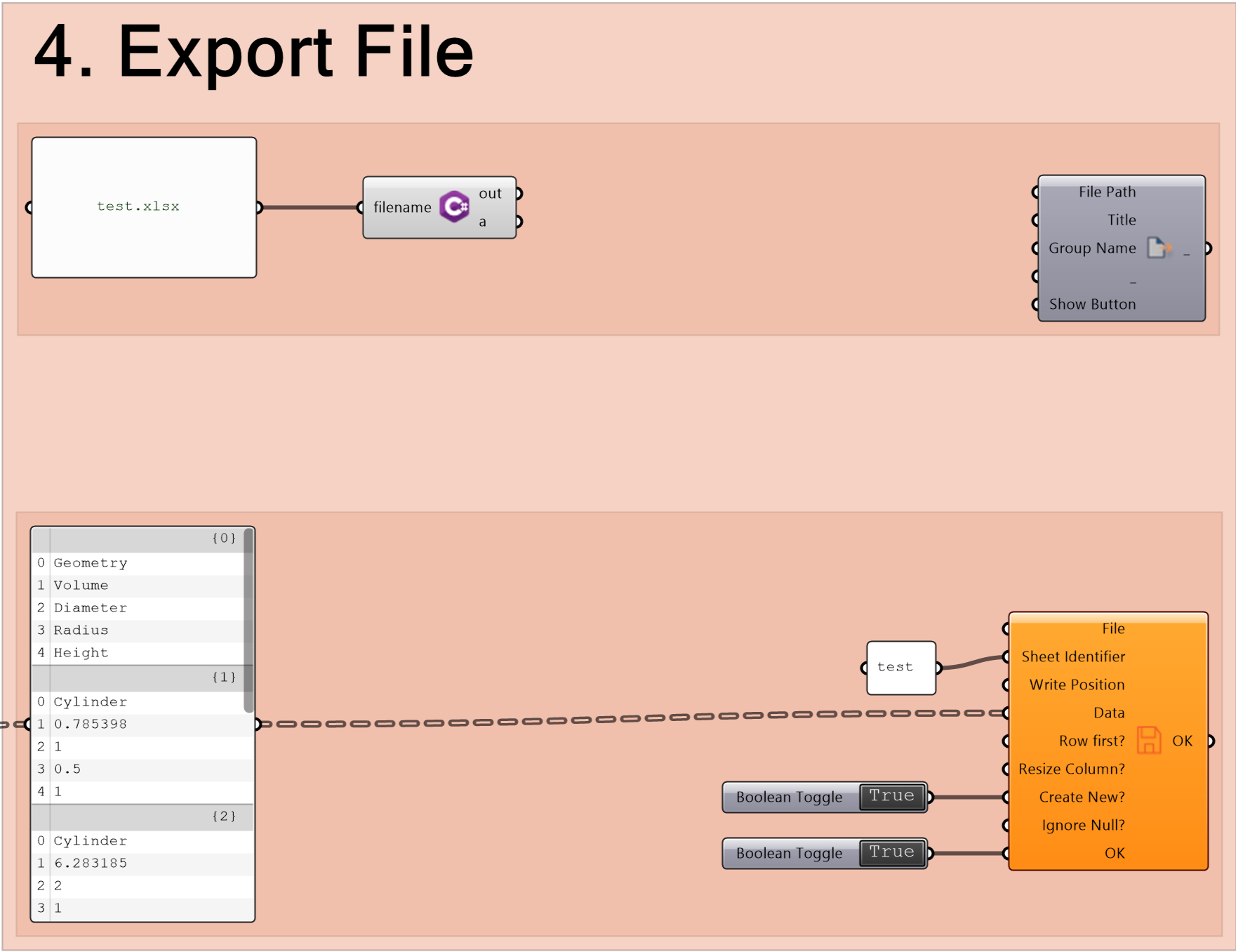
5. Connect the a output of the C# component to both:
- The File Path input of the Export File component
- The File input which defines the output file location.
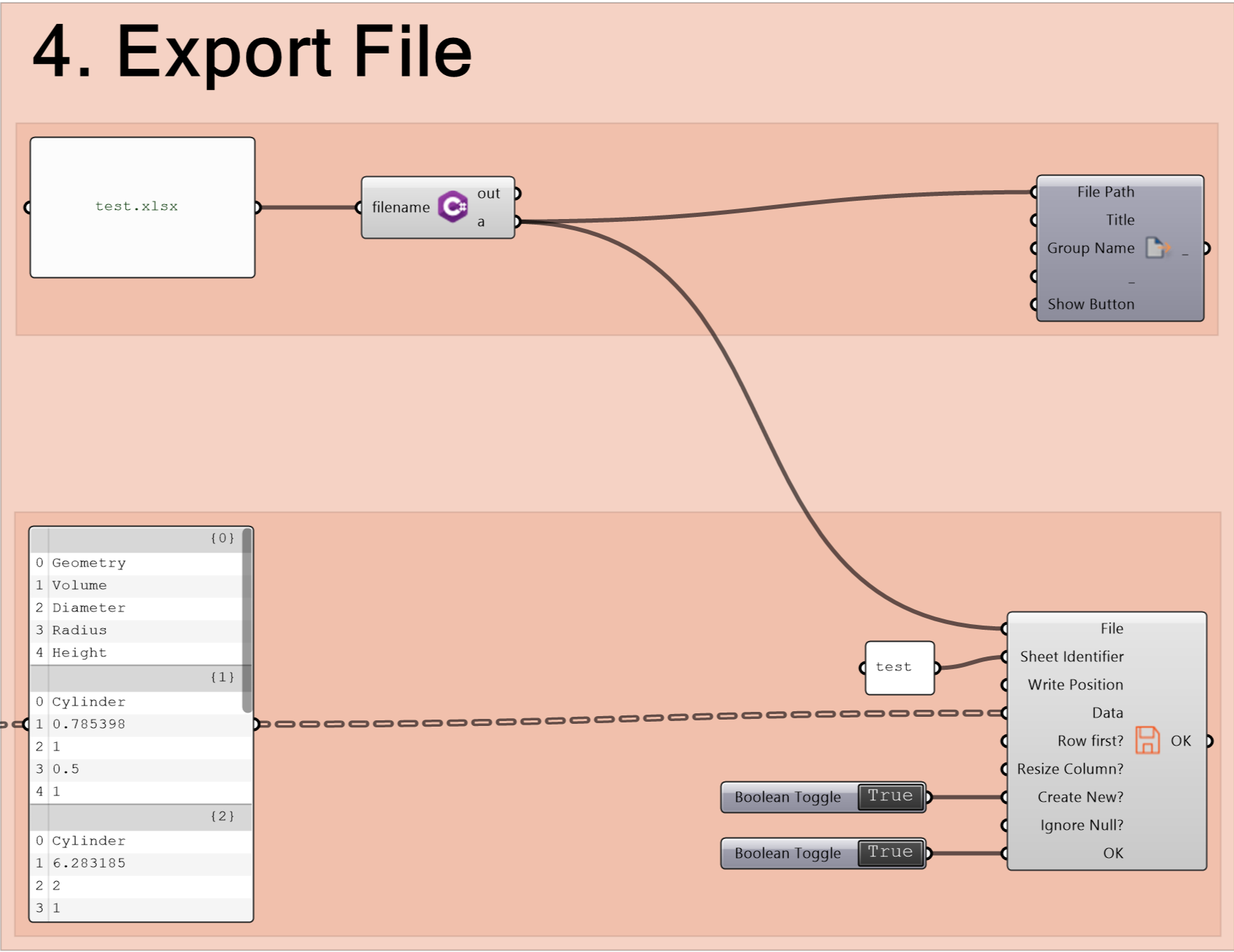
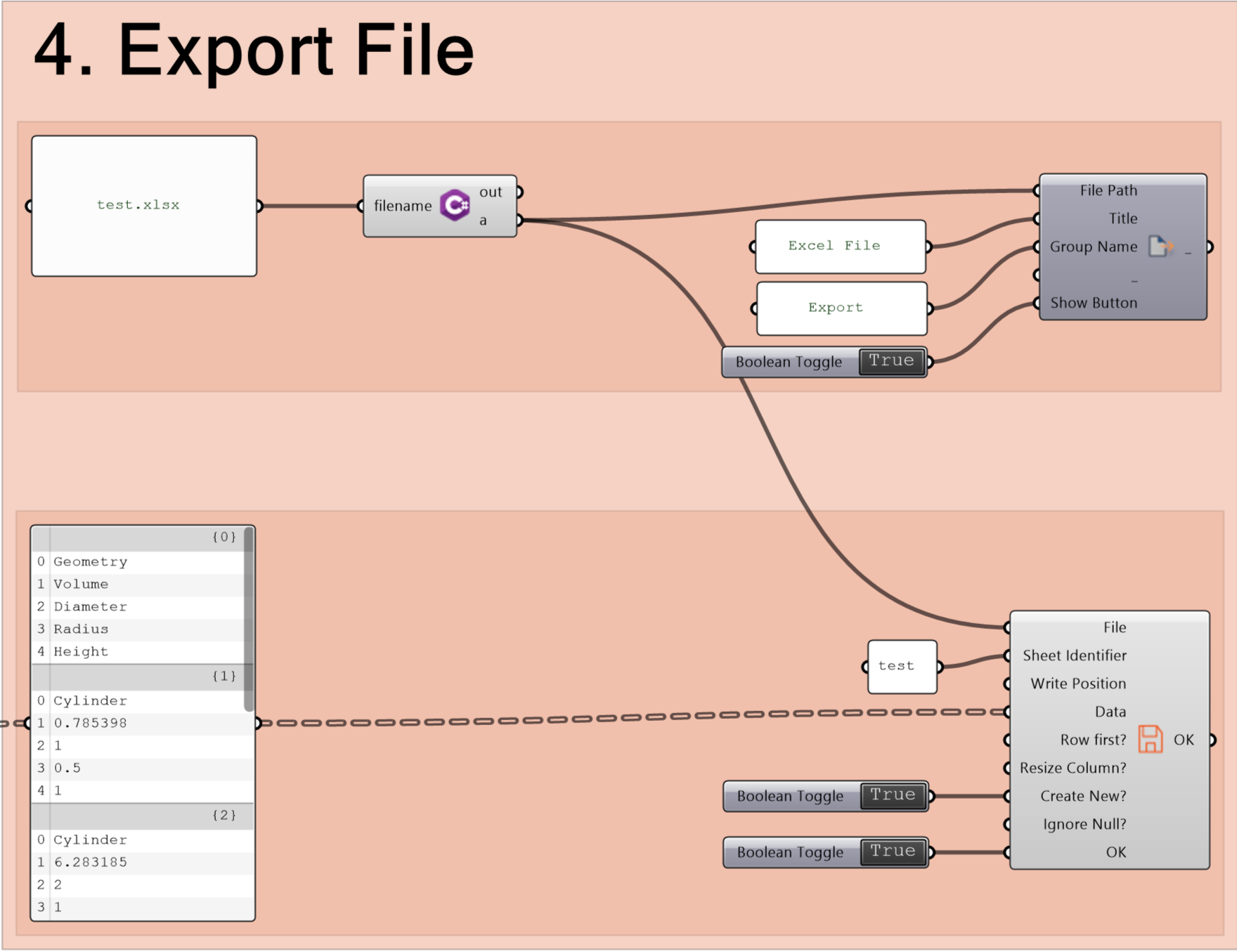
6. First, ddd a Boolean Toggle and connect it to the Show Button input to display the button in Inform.
Then, set a Group Name and Title to give the button a clear label.
Step 2: Export in Inform
1. Connect the script to Inform. Once connected, an export button appears on the left side of the interface.
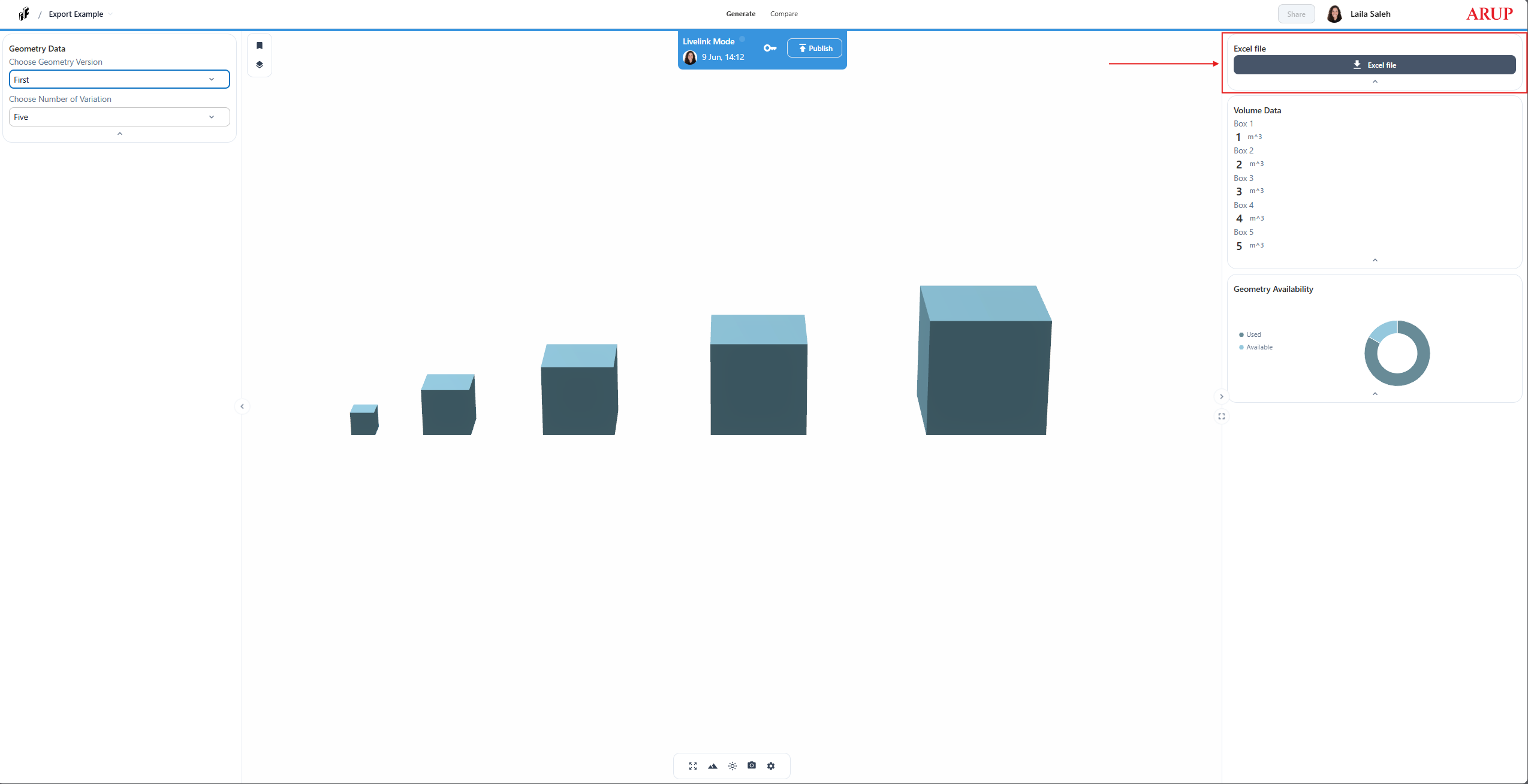
2. Explore the design options and download the generated data as needed.
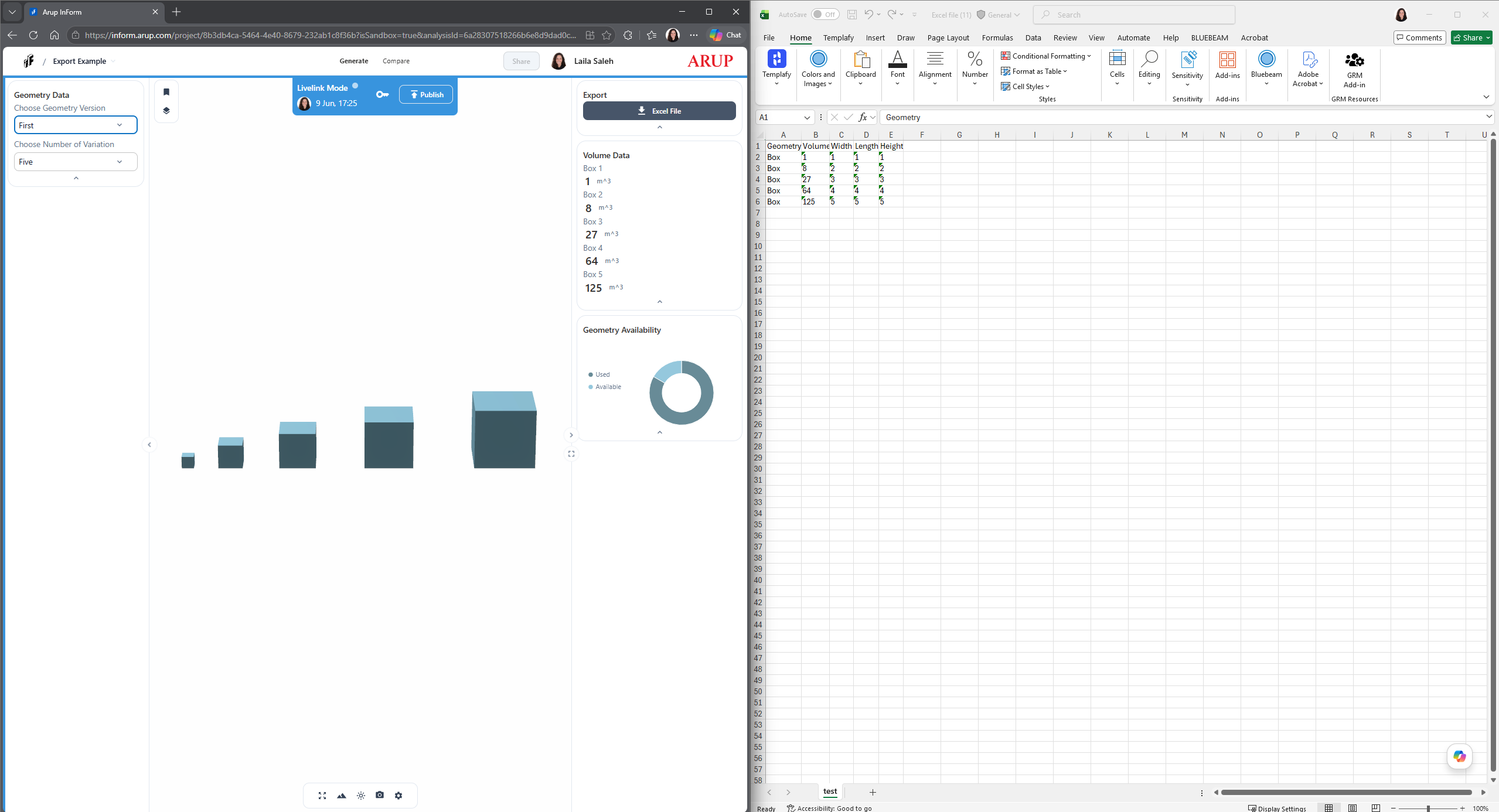
Well Done!🎉
The file is now available for download and will update automatically as new results are generated. Download it again to access the latest version!
Continue to the next page to view and download the example file.
Next: 2. Export File Example