Geometry Layer (GL)
Convert Rhino geometry into an InForm mesh layer. This component is most performant when the input is already a mesh.
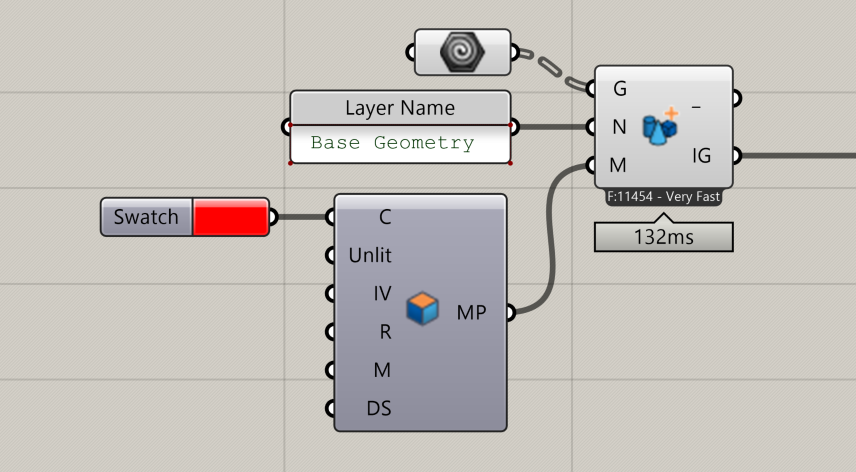
📸 Component Screenshot
📂 Component Location
Tab: 2. Geometry
📝 Description
The Geometry Layer (GL) component converts Grasshopper geometry (meshes or breps) into InF-ready geometry. It assigns a layer name and material, then packages the objects for use inside the InForm interface.
If the input mesh contains vertex colours, these override any colour set in the connected Inform Material component.
📁 Example File
🔌 Inputs
| Abbrev. | Full Name | Type | Description |
|---|---|---|---|
| G | Geometry | Mesh or Brep (Tree) | A tree of meshes or breps. Meshes perform best. Vertex colours (if present) override colours from the Inform Material component. |
| N | Name | Text | Name of the layer as displayed in InForm under the Layers tab. |
| M | Material | InForm parameter (from IM or AM) | Material applied to the geometry passed through G. |
🔄 Outputs
| Abbrev. | Full Name | Type | Description | Suggested Connections |
|---|---|---|---|---|
| - | – | JSON | Internal data used by InForm Do not use or connect this output. | None — leave unconnected. |
| IG | InForm Geometry | InForm data | Geometry container for downstream InForm actions. | Connect to components such as Hide Layer (HL) (2. Geometry) or Set Material (SM) (5. Preview). These actions will be applied to the passed geometry. |