🏗️ Generate
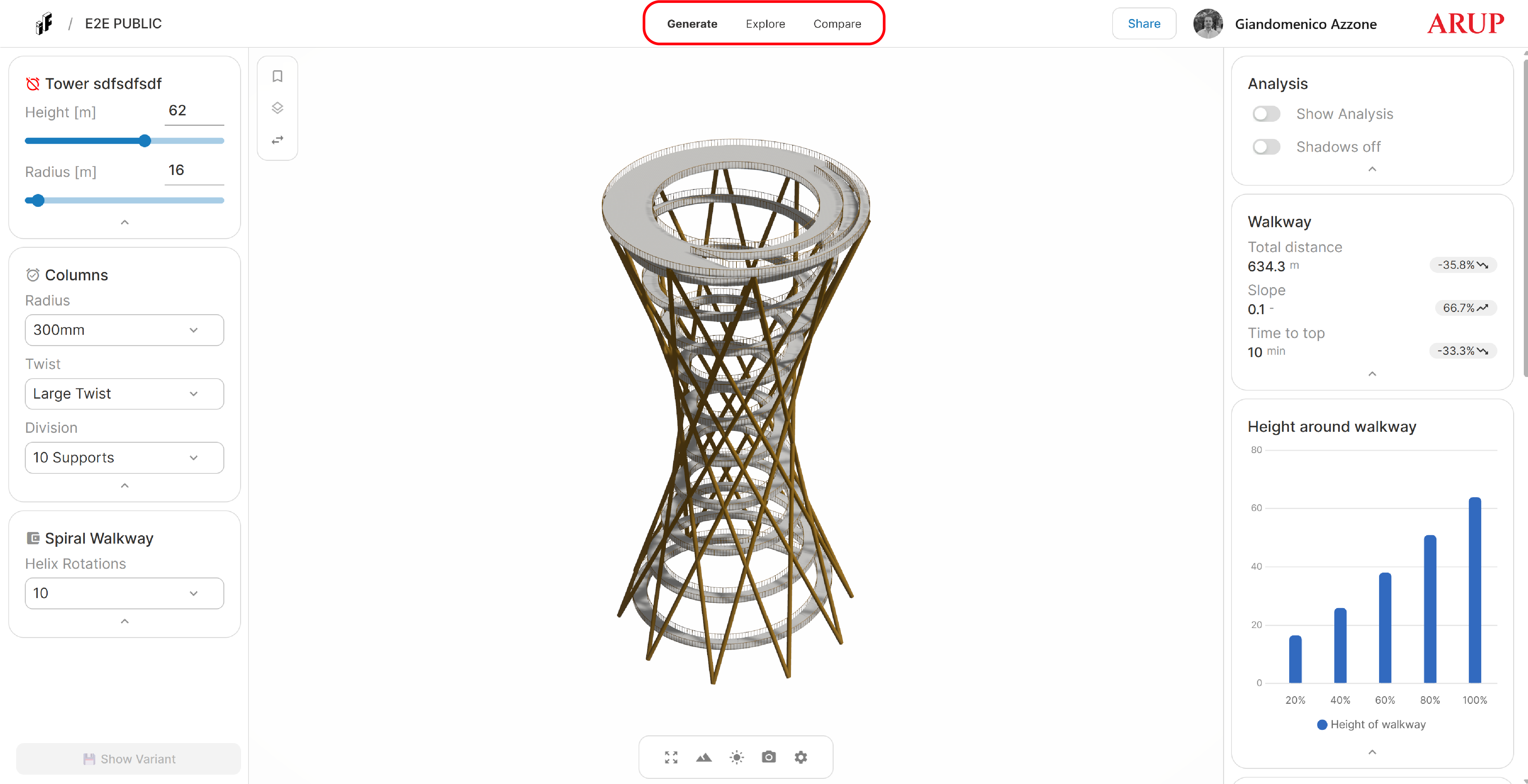
⚙️ Input Controls (Left Panel)
Inputs
Displays all parameters defined in the Grasshopper script.
Adjusting these inputs modifies the model and allows users to test different configurations.
Presets
Allows users to save specific input combinations for quick comparison.
To create a preset:
- Open the Presets tab
- Click Create Preset
- Assign a name and a description
Presets can be edited or deleted at any time.
Layers
Lists all layers present in the model.
Layers can be turned on or off to focus on specific portions of the geometry.
🧊 Geometry Viewer (Center Panel)
Displays the geometry streamed from Grasshopper.
Navigation:
- Rotate: Left mouse button
- Pan: Right mouse button
- Zoom: Mouse wheel
Viewer Controls:
- Zoom Extents: Fits the full geometry in view
- Orthographic View: Toggles between orthographic and perspective
- Shadows: Enables or disables shadows
- Set Views: Switch between top, back, front, left, and right views
- Viewer Settings: Adjust lighting intensity, sun rotation, and background colour
📊 Charts & Actions (Right Panel)
Displays all triggers and charts defined in the Grasshopper script.
These elements dynamically update based on the selected inputs and geometry.
To inspect a chart in detail:
- Hover over the chart
- Click More detail…
A dedicated full-view window opens for deeper analysis.